Make an animal silhouette guessing worksheet
A guessing sheet works when kids can name the animal from its outline alone, without help from fur color or markings. Make the PNG in SilMaker, then build the page around it in a document or design app.
Open the free converterChoose an animal with a clear outline
Use one animal in each source image. Ears, legs, tails, beaks, or fins should stand out from the background. A tightly cropped face usually gives children too little to work with.
Our example is a dog running along a park path with a stick in its mouth: four legs, a tail, and plenty of space around the body. Animals curled up or lying in tall grass are much harder to guess.
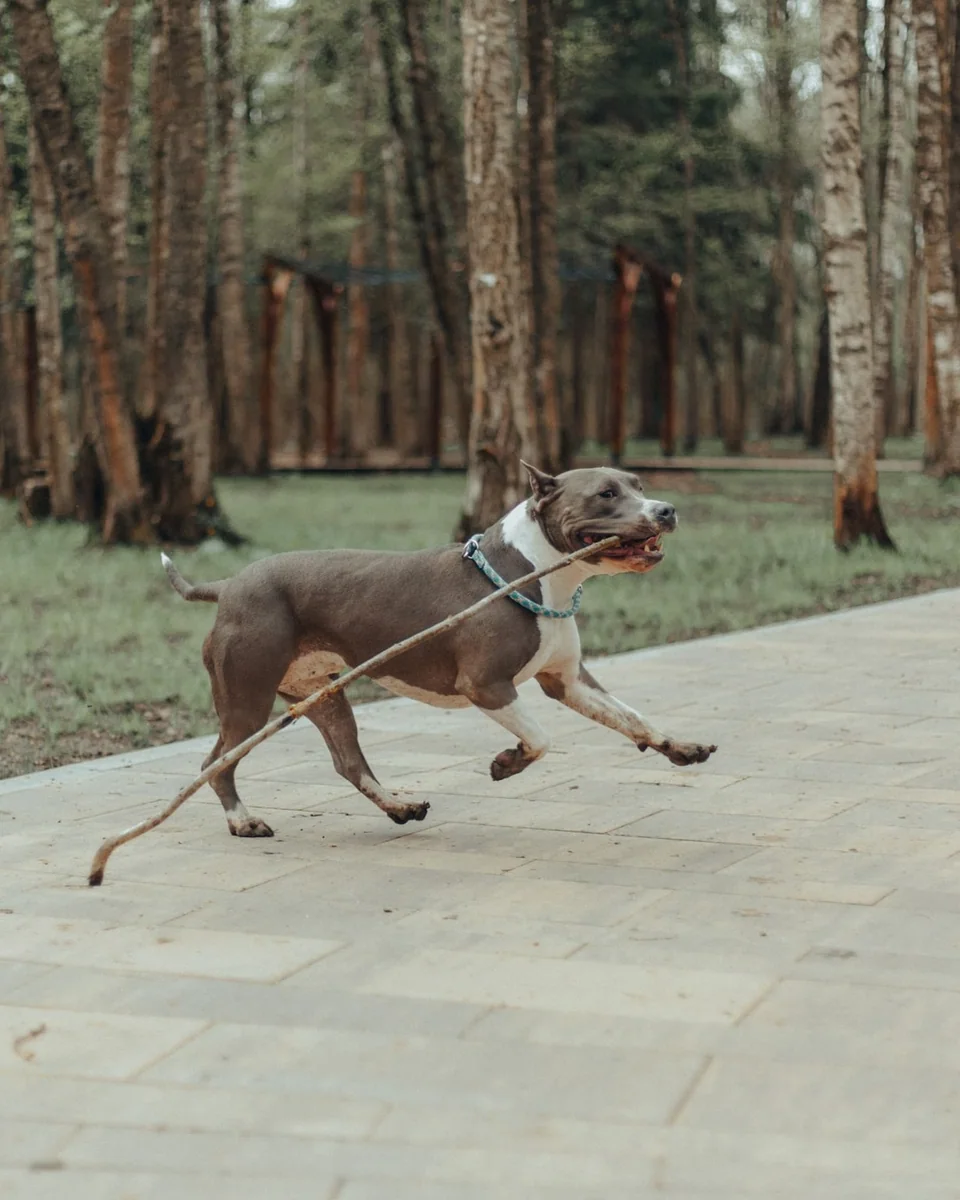 Before
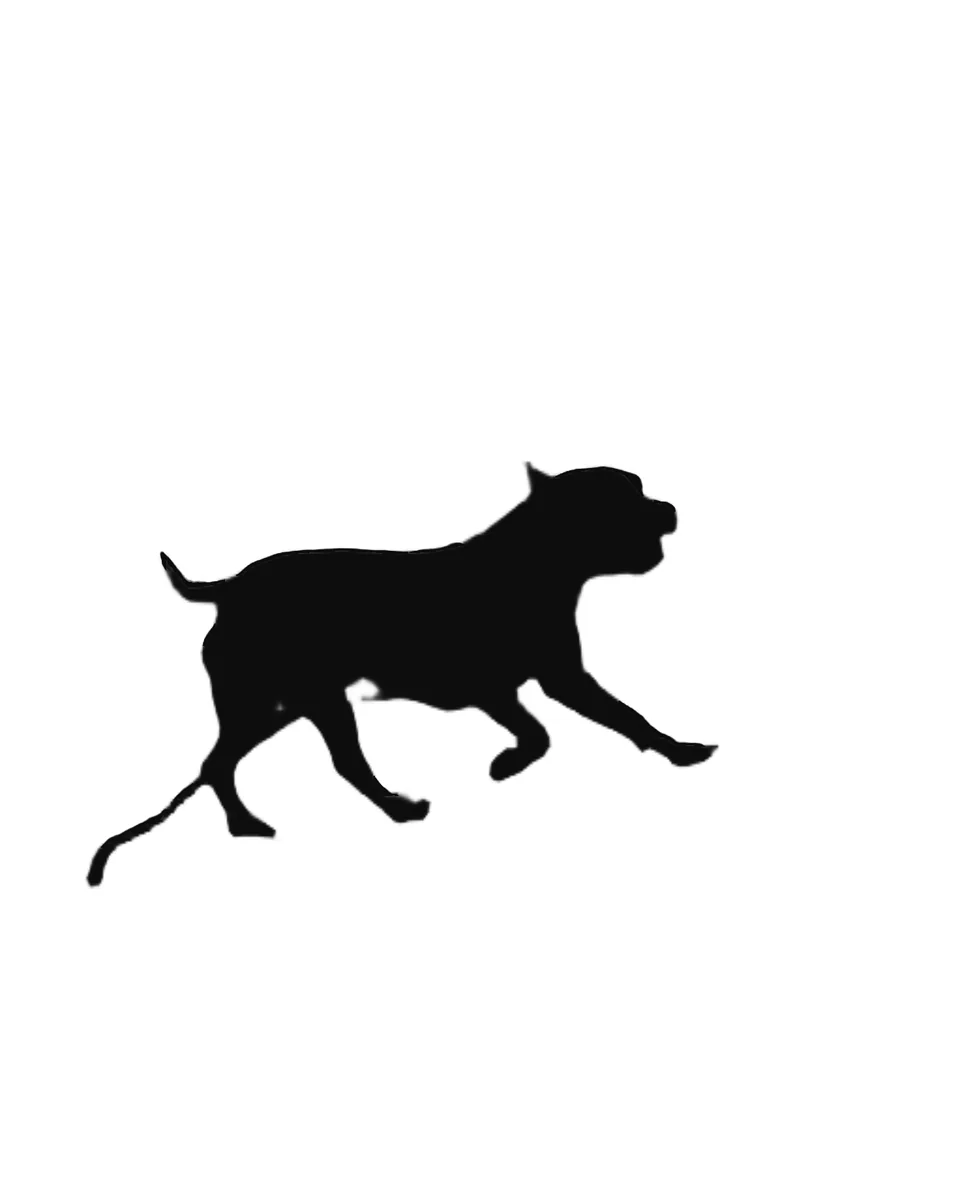 After
AfterMake and check the silhouette
Keep the same output setting for every question in a set. Consistent files are much easier to place on a page.
If a leg or ear is missing, fix it in SilMaker before downloading. Patching it later in the layout app usually looks off.
- Open the photo in SilMaker and wait for the result.
- Choose a filled silhouette and either a transparent or white background to suit the worksheet.
- Check the tail, paws, and spaces around the body before downloading the PNG.
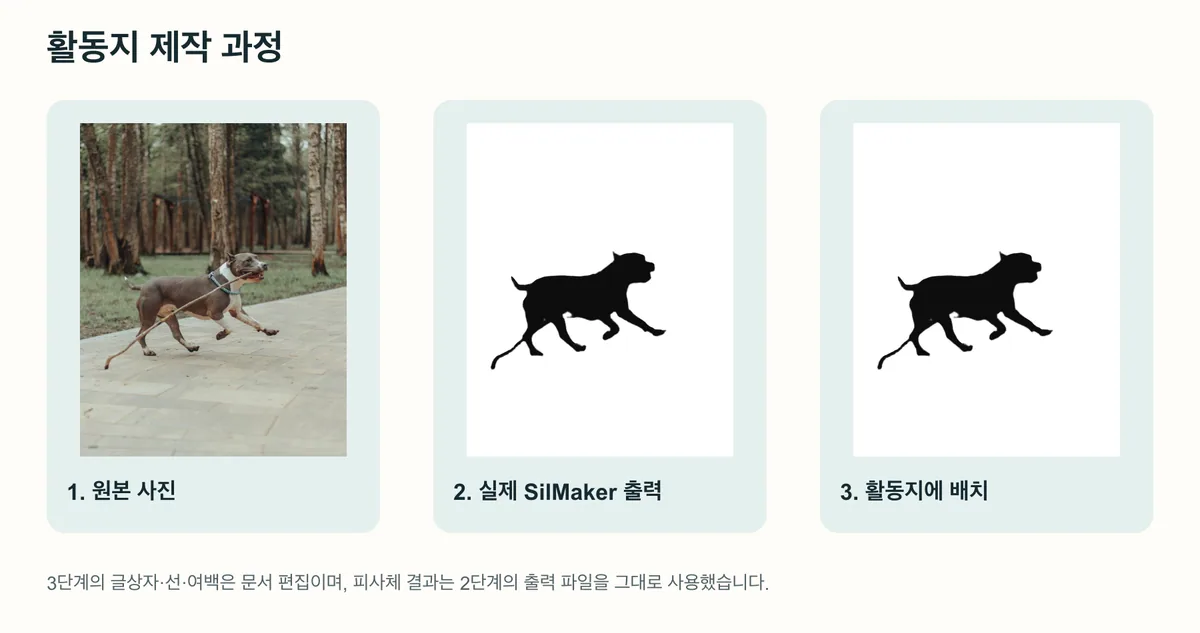
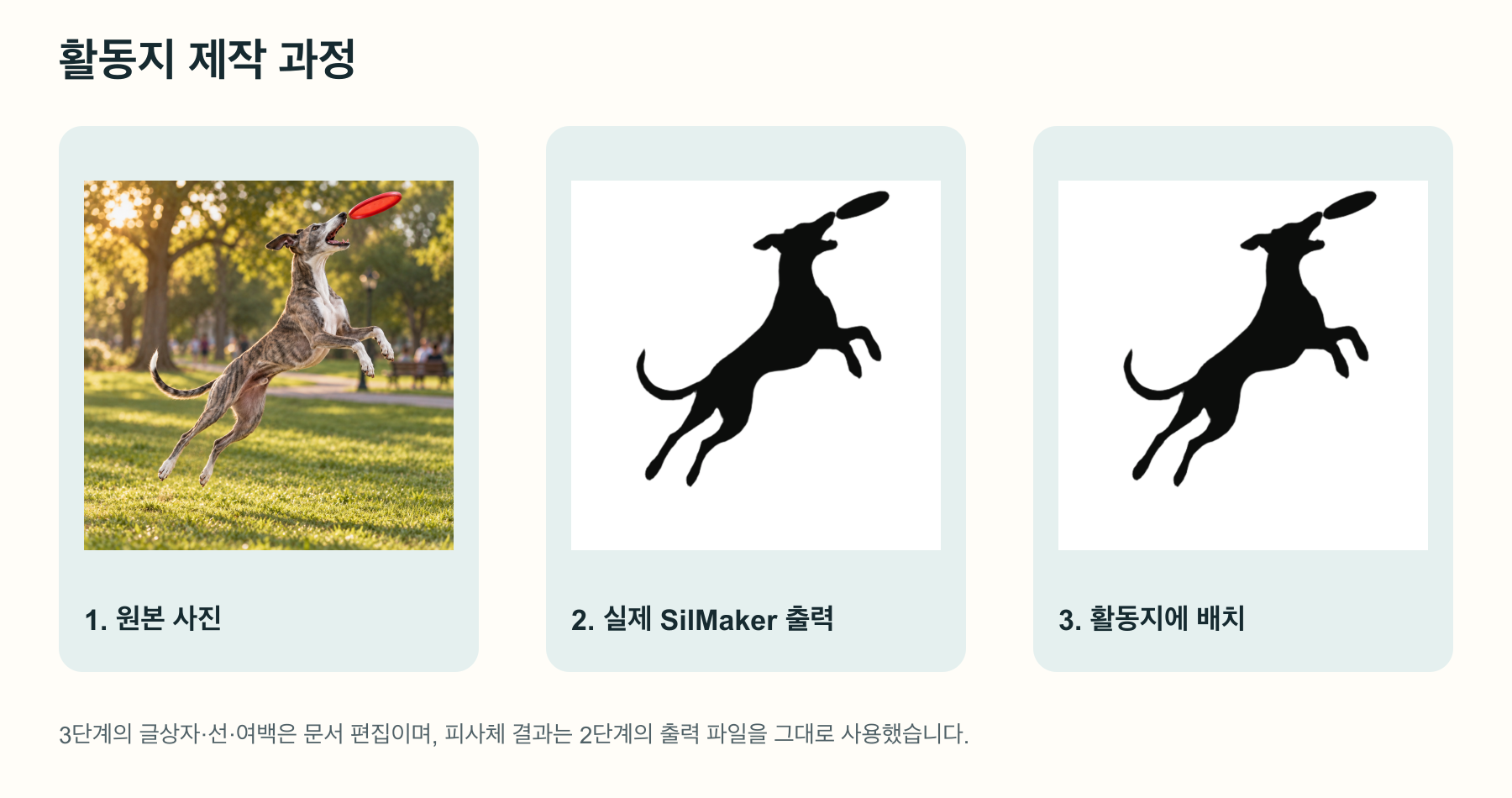
Build the worksheet in a separate editor
Drop the PNG into a document or design app, add a number and a short prompt like “Which animal is this?”, and make a separate answer key.
Leave enough open space for writing. Before printing, view the page at its intended size: narrow tails and feet can disappear when reduced.
- One large silhouette on each early-reader page.
- Four smaller silhouettes with numbered answer lines.
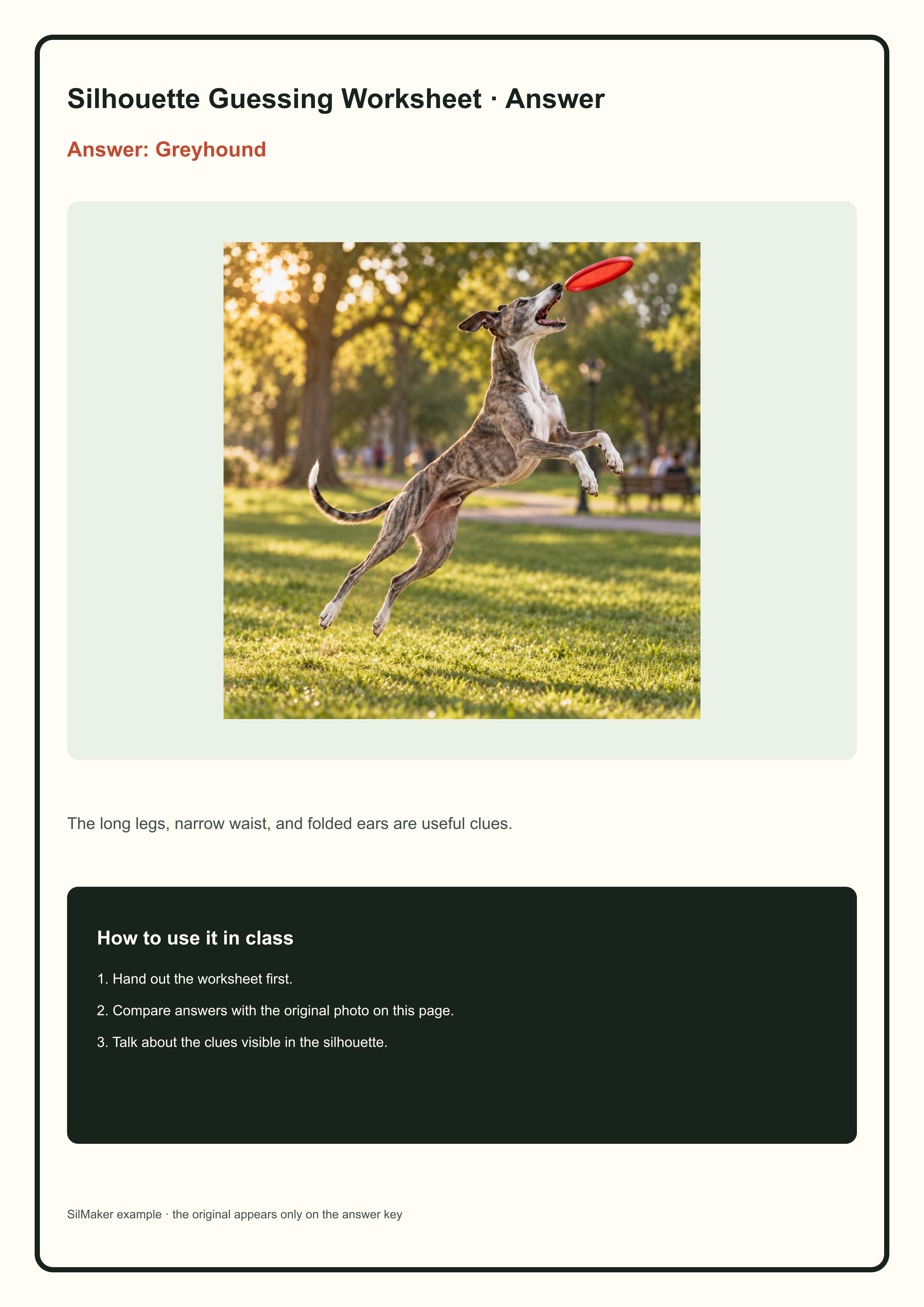
- An answer key with the animal names or original photos.
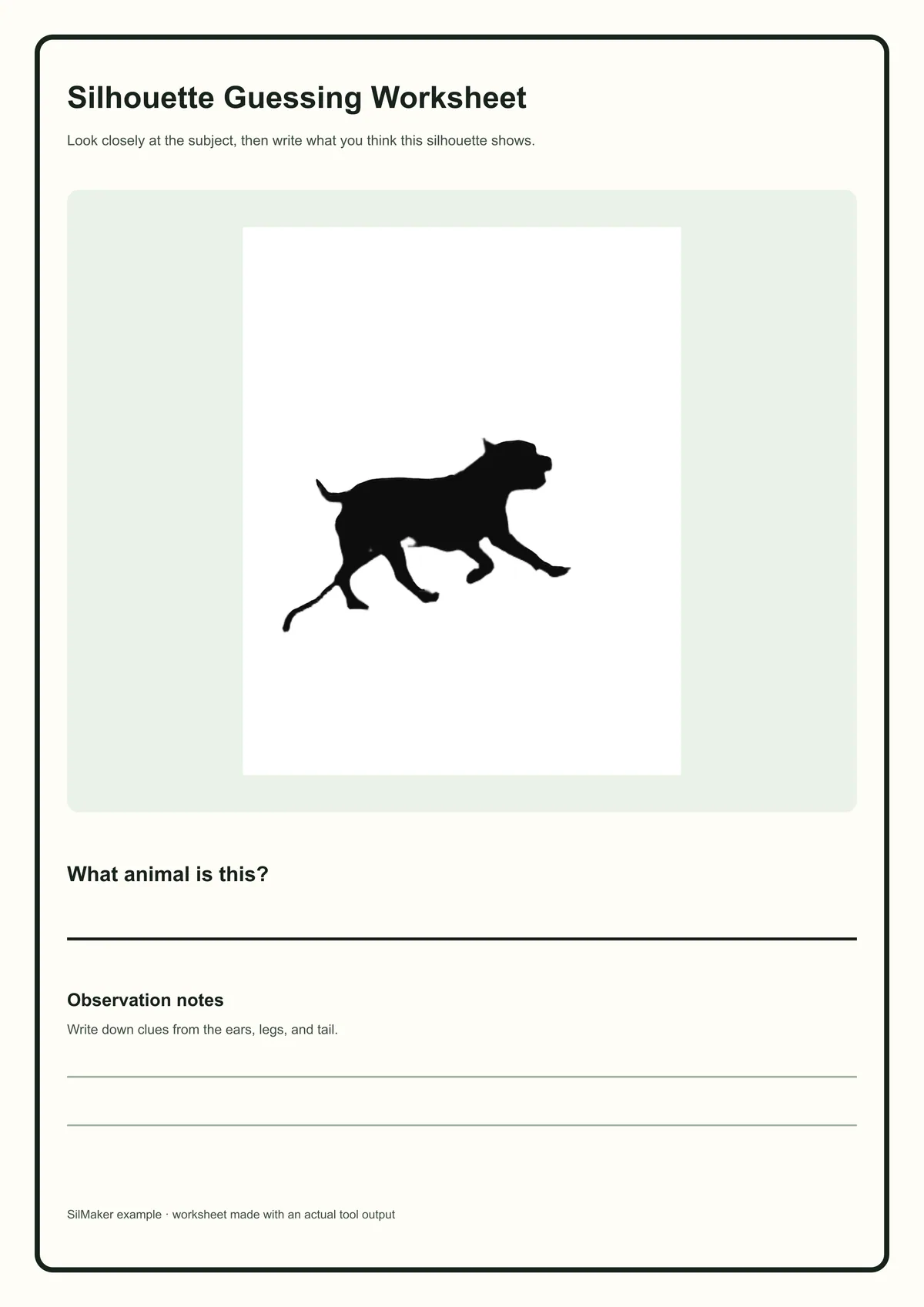
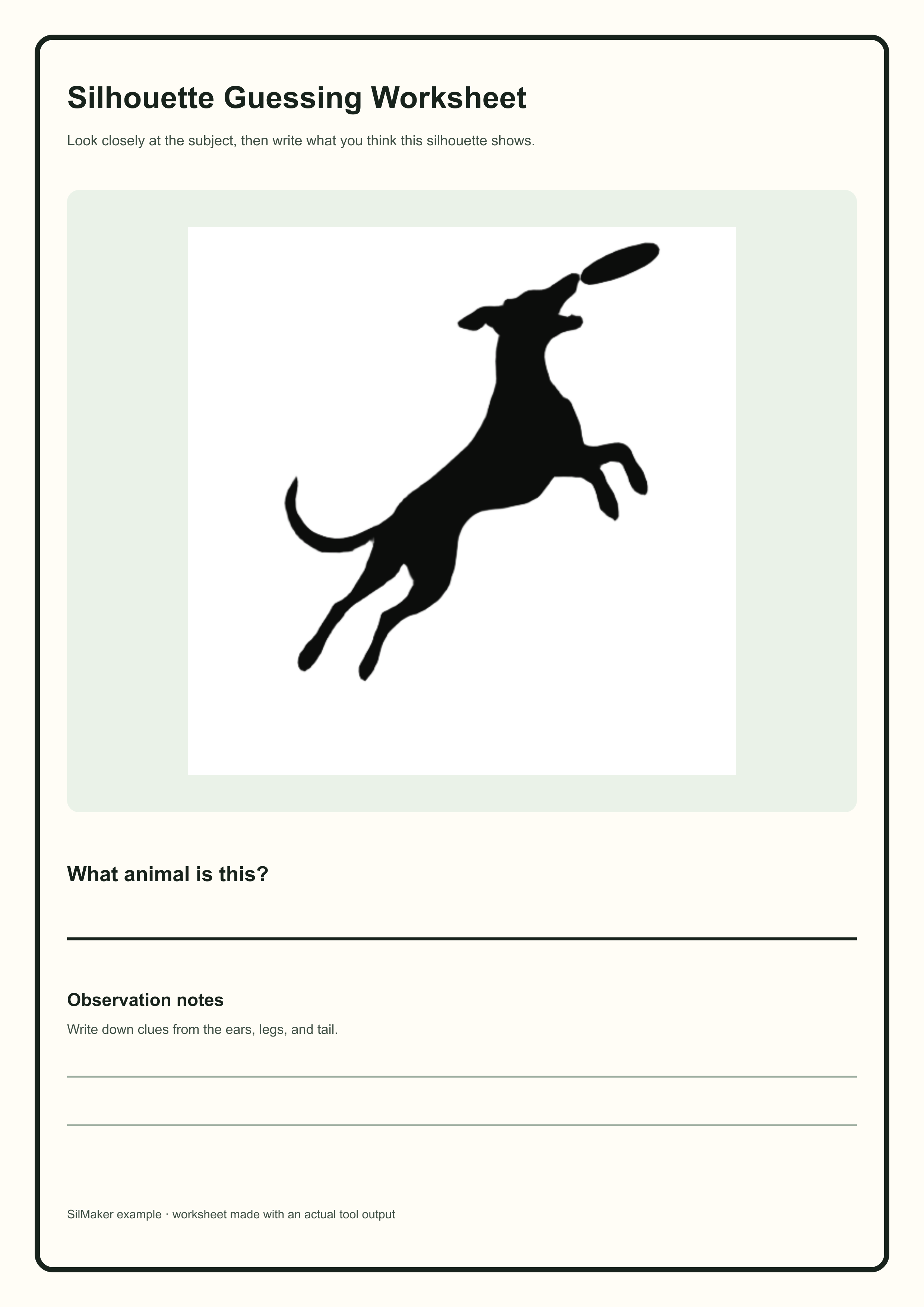
Use clear questions and permitted images
A silhouette is a clue. Similar breeds, hidden legs, or animals people know mostly by their markings, like a zebra, can leave more than one right answer.
Use images you made yourself or have permission to reuse. Pictures from a web search often come with restrictions.
Frequently asked questions
Should the worksheet use transparent PNGs?
Use transparent PNGs when the document background may change. A white background is simpler when the worksheet is intentionally white and no later layering is needed.
Can I use the silhouette as the answer image?
Put the original photo or the animal's name in the answer key. A silhouette on its own can't settle which breed it is.