Turn a PNG into a silhouette online
A PNG can have a transparent background or a complete photo scene. SilMaker uses existing transparency when available; otherwise it separates the subject first. Then choose a filled or outline result and the background you need.
Open the free converterConvert a PNG in four steps
- Open SilMaker and choose a PNG up to 15MB.
- Let the browser check whether the file already has a usable transparent background.
- Choose a silhouette color and select a Filled or Outline background.
- Download the current result as a PNG or share it from a supported device.
 Before
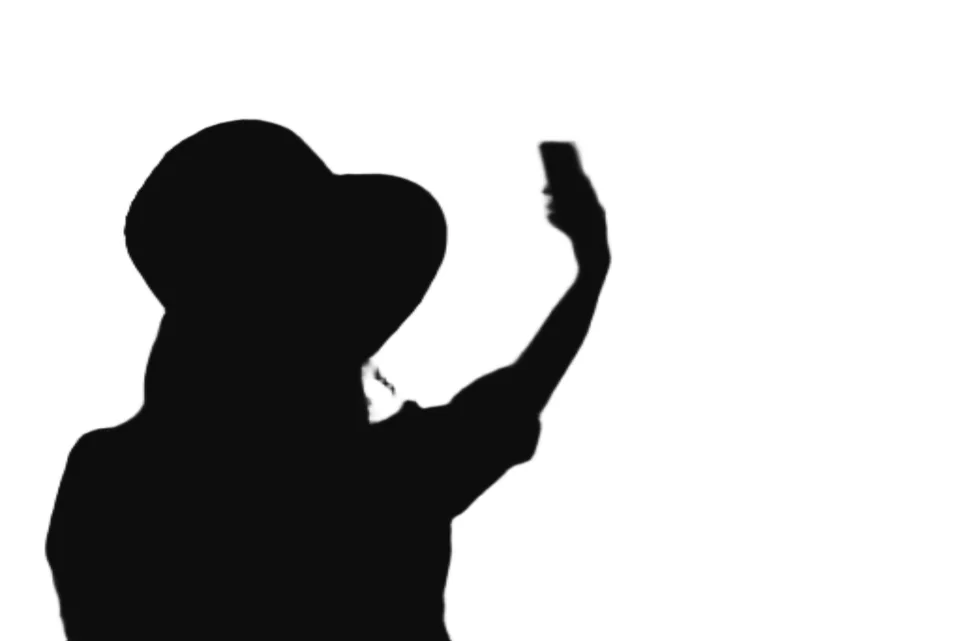 After
AfterTransparent PNGs take the fastest path
If your PNG already has a transparent background, SilMaker uses it to identify the subject. It can skip automatic background removal for that image.
Soft, half-transparent pixels around curves are kept as they are. That's why a clean transparent PNG gives a better result than a screenshot of the same subject on a plain rectangle.
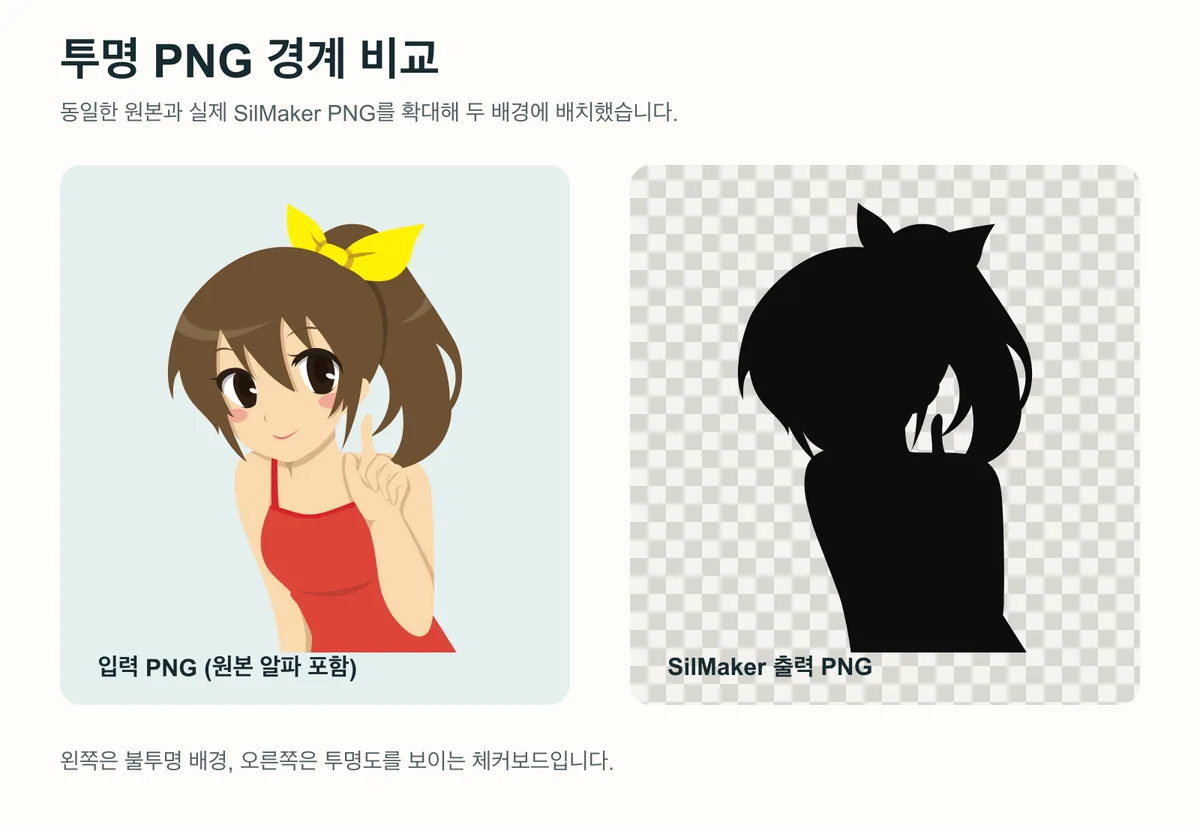
An opaque PNG is not automatically background-free
A .png extension doesn't mean the image is transparent. PNGs saved from websites or screenshots often still have a solid white, colored, or photo background.
For opaque files, SilMaker checks whether the background is simple enough to remove locally. If that decision is uncertain, it falls back to the normal browser-based subject detector.
 Before
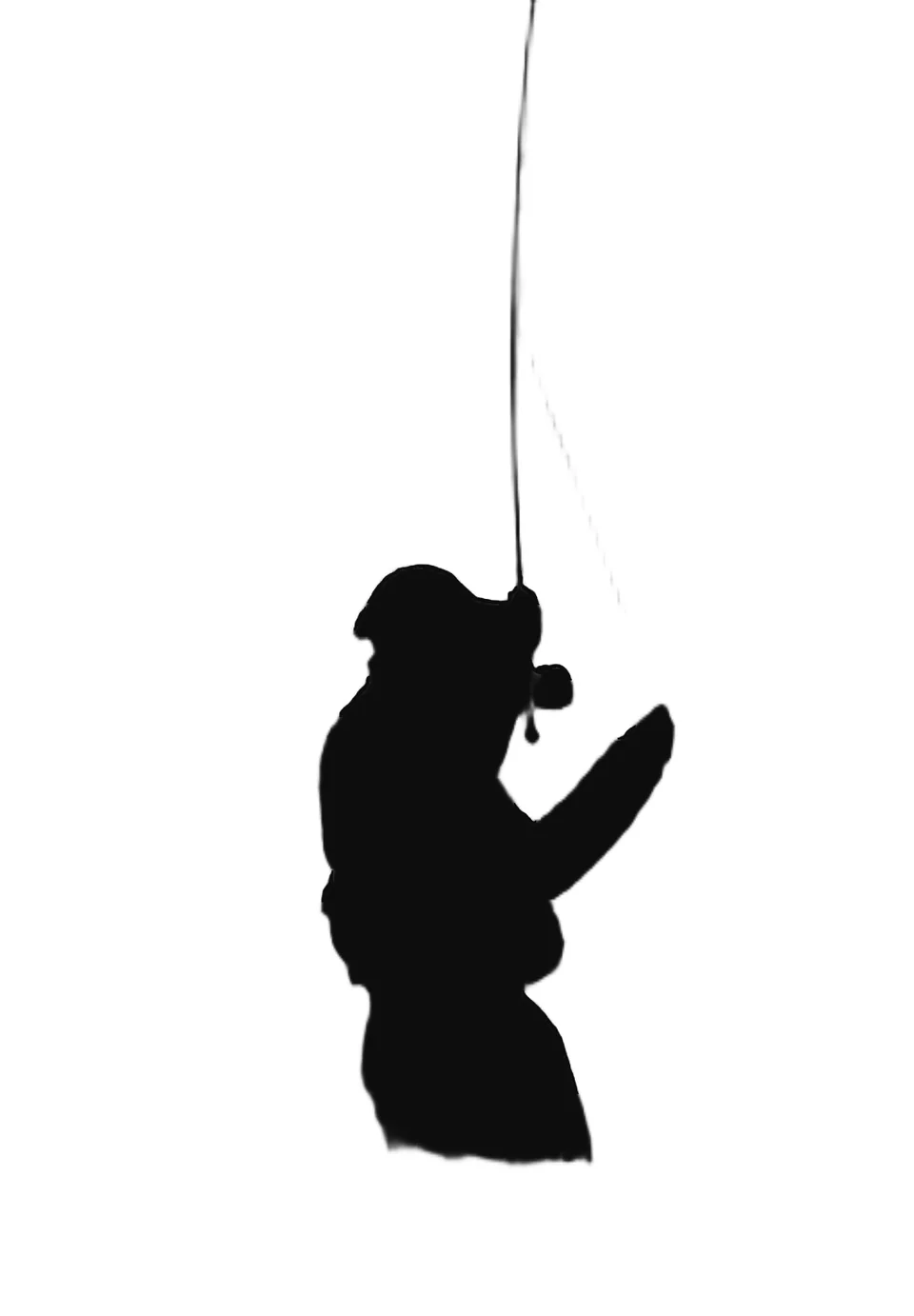 After
AfterUseful PNG input examples
Choose a PNG with a clear subject and some transparent space around it. Try the same approach with your own file; the photo you select is processed in your browser.
- A transparent product cutout that needs a single-color silhouette.
- A transparent character or object illustration that needs a clean outline.
- A logo-shaped raster graphic for a slide or draft layout, when a PNG result is sufficient.
- A previously removed-background photo that needs a new silhouette color.
Choose the output you need
For a filled cutout, choose Transparent. To keep the source image or use a solid color, choose Original or Custom. For an outline, those choices control what appears around or inside the line; Hollow leaves the subject interior open.
Results are saved as PNGs at the processed size. SilMaker doesn't make SVG paths or cutting files.
 Before
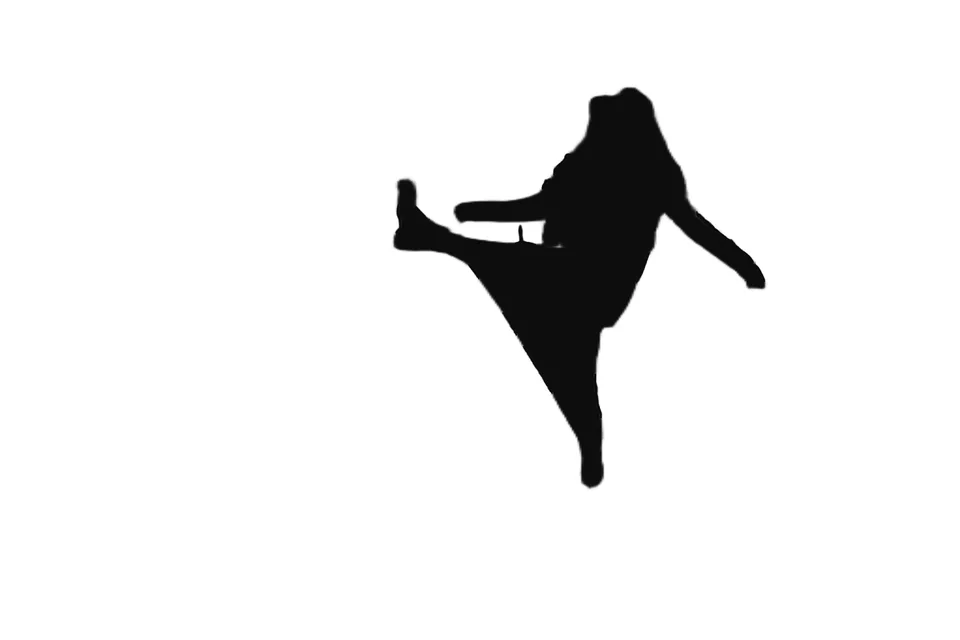 After
AfterFrequently asked questions
Does my PNG need a transparent background?
No. SilMaker uses a transparent background directly. For a PNG without one, it checks for a simple background and otherwise uses the normal subject detector.
Will semi-transparent edges stay smooth?
SilMaker keeps the PNG’s existing transparency, including soft edges. Filled and Outline use the same subject selection.
Does SilMaker upload my PNG?
No. Opening, editing, and saving all happen in your browser. The browser may download the processing model, but your image is never part of that download.
Can I convert the silhouette PNG to SVG here?
No. SilMaker exports raster PNG files. Use a vector editor if you need an editable path, unlimited scaling, or a manufacturing cut line.