Create a transparent silhouette PNG from a photo
A transparent silhouette PNG contains the solid subject shape without the original scene behind it. It can be placed over a new color, photo, slide, worksheet, or layout without a visible rectangular background.
Open the free converterMake a transparent silhouette PNG
- Open the SilMaker tool and choose a photo with one clear subject.
- Check the selected subject and use Smart Brush to fix missing or unwanted areas.
- Select black, white, red, blue, lime, or a custom silhouette color.
- Choose Filled, set the background to Transparent, and save the PNG.
 Before
 After
AfterWhy use a transparent background?
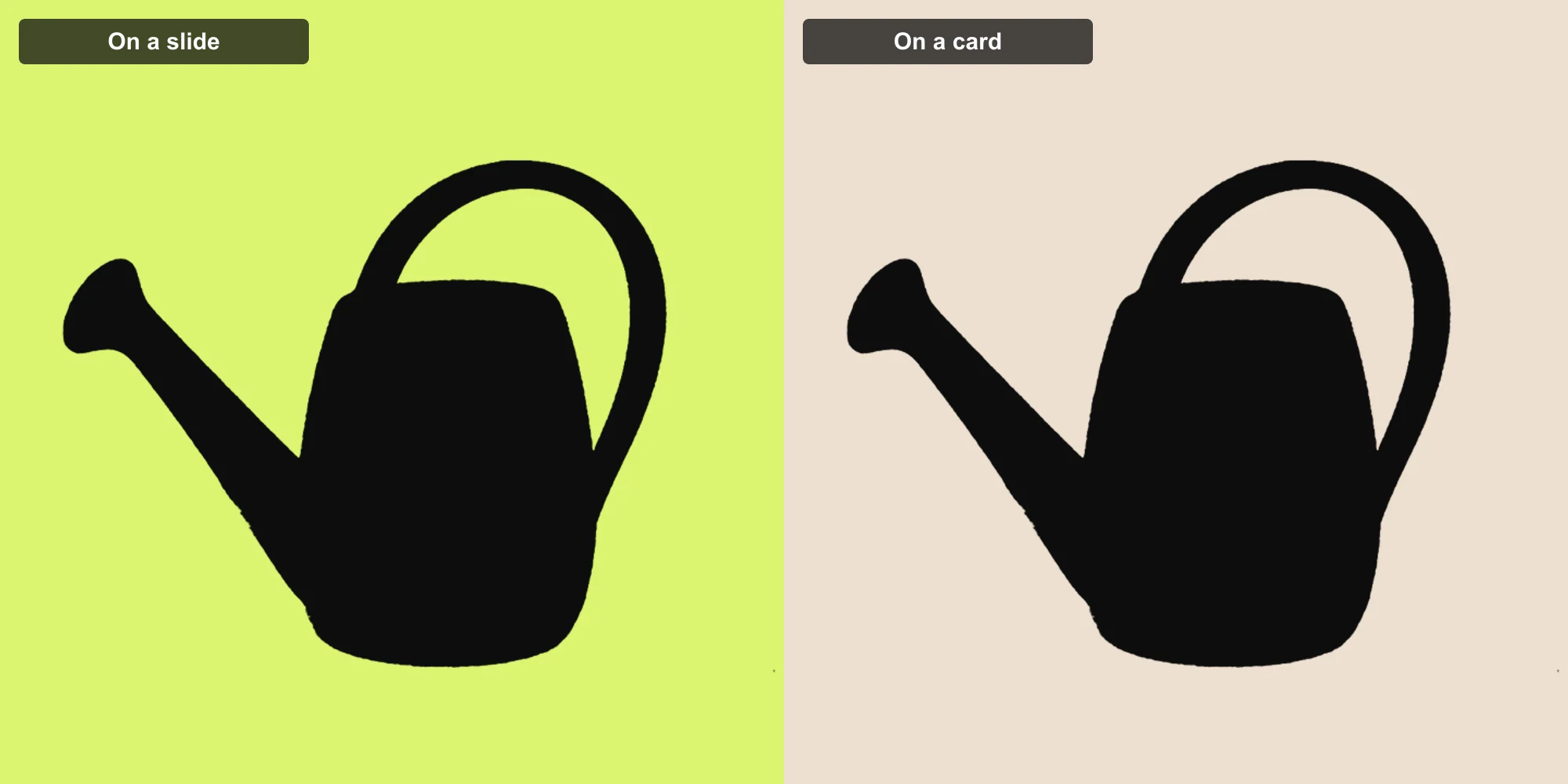
With a transparent background, the same file works on a dark slide, a bright social post, or a classroom worksheet.
PNG keeps soft, half-transparent edges, so curves blend into the new background without a hard border.
 Before
 After
After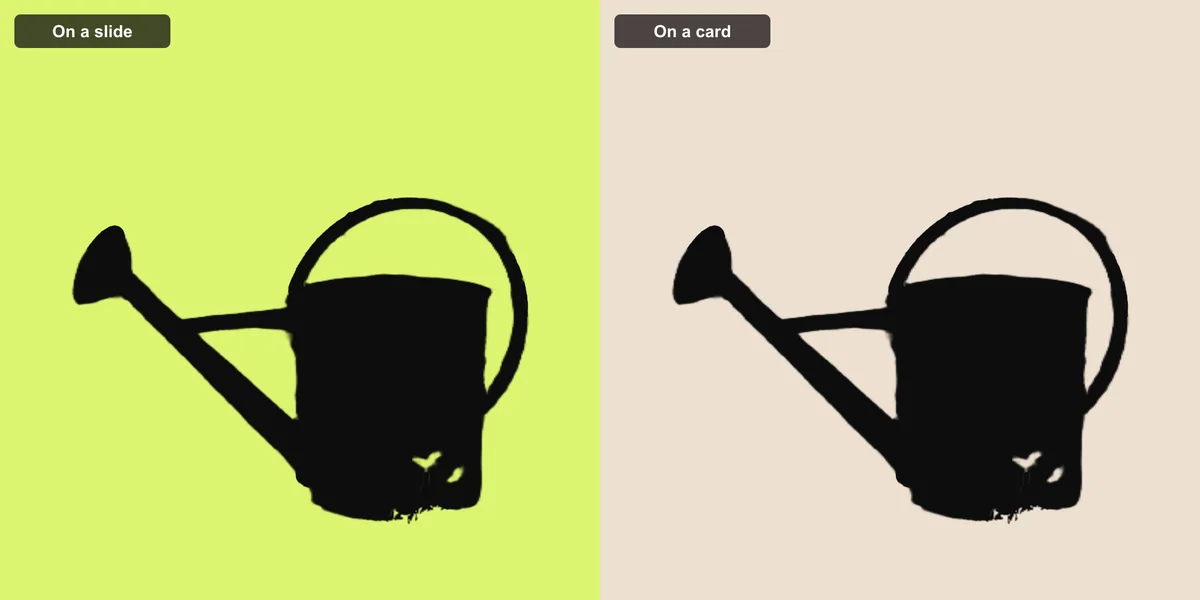
Choose a color for where you’ll use it
Black is the familiar silhouette choice, but the best color depends on the background where the PNG will be placed. White works over dark scenes, while a bright custom color can create a poster or thumbnail accent.
Check contrast in the final layout. A correct silhouette can still become hard to read when its color is too close to the new background.
Keep fine details readable
Zoom in on hair, fingers, ears, bicycle spokes, and narrow gaps before saving. Use a small brush to restore missing details or remove leftover background.
Blurry photos, glass or other see-through objects, and subjects that match the background color may still need work in a full image editor.
 Before
 After
AfterPNG transparency is not a vector cut path
A transparent silhouette is still a pixel image. It's fine for screens, documents, and prints at a sensible size, but it won't enlarge cleanly the way an SVG does. Cutting machines and large signage usually need a separately traced vector path.