Remove a photo background and save a transparent PNG
Sometimes the best part of a holiday photo is the laugh you caught with a friend. Here we keep that moment, drop the busy beach behind it, and then put the same two people on a plain cream background. Along the way, check the raised hand, the curls, the bags, and the sandals. Finally, we turn a pet photo into an outlined sticker.
Remove a backgroundKeep the holiday mood, choose what belongs in the picture
Rhea Jabagat took this photo of two friends laughing on a beach, one of them waving at the camera. The credit and source link are below. Both edited versions were made and downloaded in SilMaker.
Both friends belong in this example. Before processing a group photo, decide whether you want everyone or just one person. Check that hands and feet are inside the frame. Here the sandals and raised hand are visible, while smaller people in the water and a spare pair of sandals are background distractions.
 Original
 Background removed
Inspect hands, curls, and the spaces between people
Open the background remover and choose a JPG, PNG, or WebP image up to 15 MB. When processing finishes, choose Transparent from the style buttons. Here the sea, the sky, the swimmers in the distance, and the spare sandals all disappeared, and both friends stayed, clothes and all.
We opened Smart Brush and zoomed in on the waving hand to check the fingers and the gaps between them. They looked fine, so we kept the automatic result. The checkerboard you see in the tool marks transparency and doesn't end up in the saved PNG.
Small details are where things go wrong. Look at the curls, the glasses resting on one head, the handbag edge, and the dress tassels, since thin or see-through bits can come out soft. Check the space between the two people as well as the outer edge, especially where arms or clothes overlap.
Try the cutout in a different post
After downloading the transparent PNG, we chose Color, picked cream, and saved a second copy from the same selection. With the beach gone, your eye goes straight to their faces, the patterned clothes, and the wave.
If the place is part of the story, the original beach photo is still the one to post. The cutout is handy next to a travel caption, in a trip recap, or on a simple graphic background.
The framing is the same as the original photo. In your layout app, resize and move the cutout so a heading fits without covering faces or fingertips. The sunlight on the people doesn't change either, so try the cutout on the background you actually plan to use. Not every color will suit it.
Transparent PNG Cream background
Turn a pet photo into a sticker with an outline
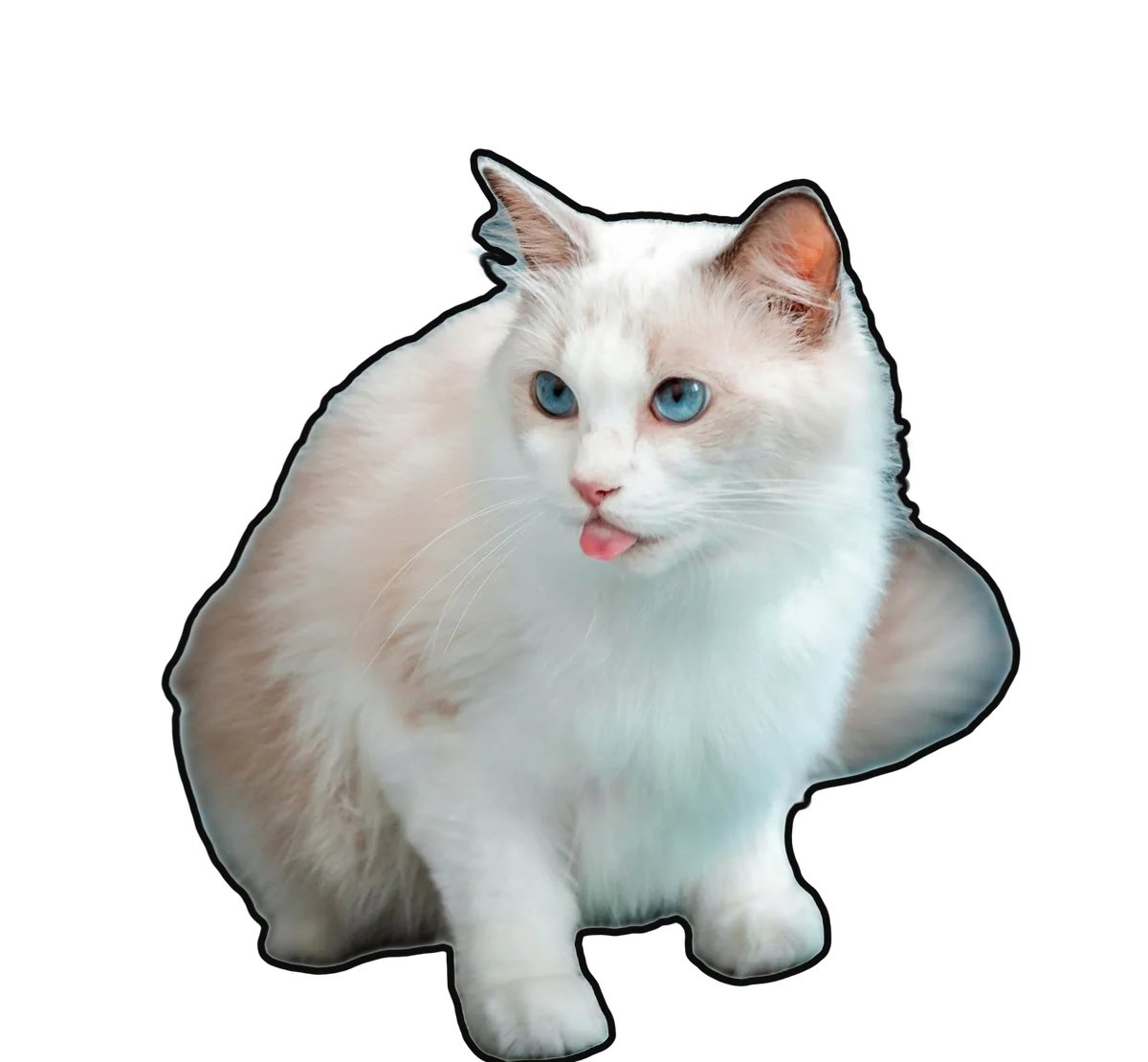
The Outline style works best on one clear subject, so for this part we switched to a different photo: a white Ragdoll sticking its tongue out on a teal blanket, taken by Pet foto. We cropped away the empty blanket above the cat before opening it, then picked Outline instead of Transparent on the result screen.
SilMaker kept the cat's own colors, from the blue eyes and pink tongue to the cream patches, and drew a thick black line around the edge of the selection. Everything outside the line is transparent, so the PNG looks like a die-cut sticker wherever you place it. This is the automatic result, with no Smart Brush fixes.
Look closely at the fur. A Ragdoll's coat is soft at the edges, and the outline follows a smoothed version of it rather than every tuft, so long whiskers that reach past the fur are cut off at the line. White fur on a teal blanket can also keep a faint blue-green tint right at the edge. On a small sticker you'll hardly notice either, but if an ear tip or a patch of fur is missing, add it back with Smart Brush before downloading. Single whiskers are usually too thin to bring back.
The line color comes from the color swatches below the style buttons. We left it on the default black, which stays visible on a checkerboard, white paper, or a pale background. Pick a lighter color if the sticker will sit on a dark design. The outline is saved in the PNG, so you don't need to draw a stroke in another app.
Outlined cutouts work well as chat stickers, on pet birthday cards, in a scrapbook-style album, or in a thumbnail where the subject needs to stand out. If you print it, the line shows where to cut. Check the file at the size you'll actually use, too: a sticker in a chat window is much smaller than the preview here.
 Original
 Outline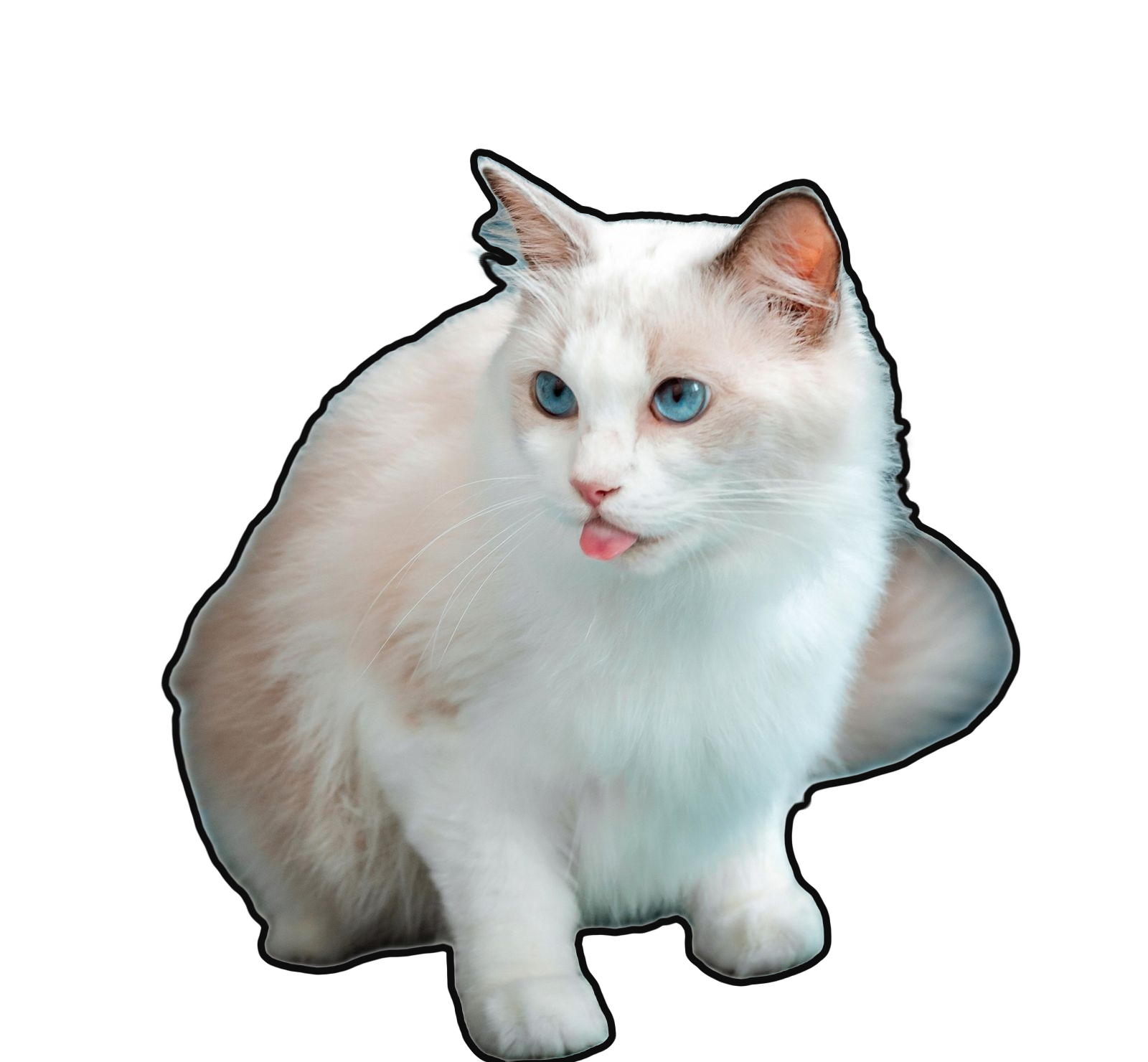
When your own photo needs a brush correction
If a finger or part of the clothing is missing, open Smart Brush and choose Add. If unwanted beach or another object remains, choose Remove. Use a smaller Brush size near narrow gaps, make one short stroke, and compare before continuing. Undo if the stroke changes more than intended.
Choose Done to go back to the result. Pick Transparent for a cutout you can reuse, Outline for a sticker look, or Color for a solid background, then download the PNG. Save before you refresh or close the tab. A PNG can hold a white or cream background just as easily as transparency, so check which style is selected rather than the file extension.
When people overlap, hair is flying, or the shot is blurry, a sharper photo often beats a long round of corrections. Group photos vary a lot, so yours may need more touch-up than this one did.
Frequently asked questions
Does background removal change the subject colors?
No. Background removal keeps the original colors and texture. Choose the silhouette option if you want a single-color shape instead.
Why does my saved image still have a background?
Check the style buttons before downloading. Transparent and Outline leave the background empty, while Color fills it with a solid color.
Why does processing take longer the first time?
The browser needs to download the image-processing model on the first run. Leave the page open until the result appears.
Is my photo uploaded to a server?
No. Background removal and brush corrections happen in your browser; your source photo is not uploaded. Save the PNG before refreshing or closing the tab, because the current work will be cleared.
Can I change the outline color?
Yes. When Outline is selected, color swatches appear below the style buttons. The color you pick becomes the line color and is saved in the PNG.