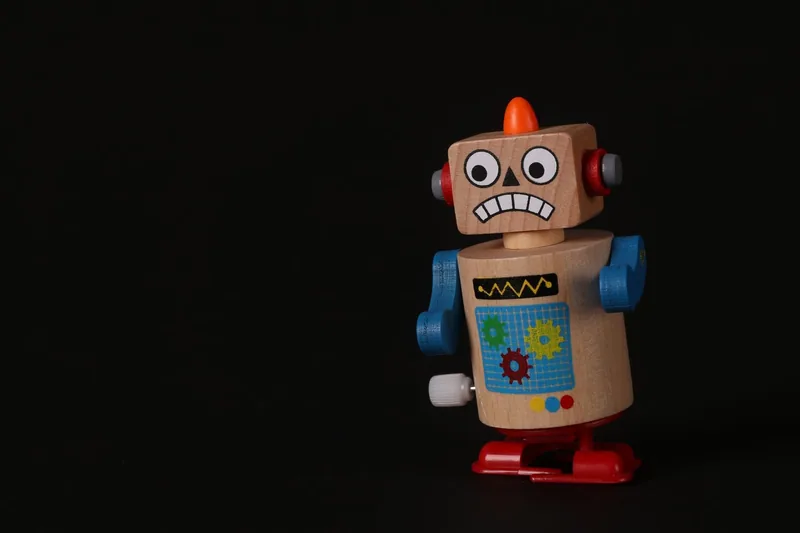
1. Choose the original photo
Pick a JPG, PNG, or WebP file. The first run takes longer because the browser downloads the recognition model. Your photo stays on your device, and a PNG that's already transparent keeps its transparency.
Create filled silhouettes, transparent PNGs, and outlines — no account required.
or choose a photo from your device
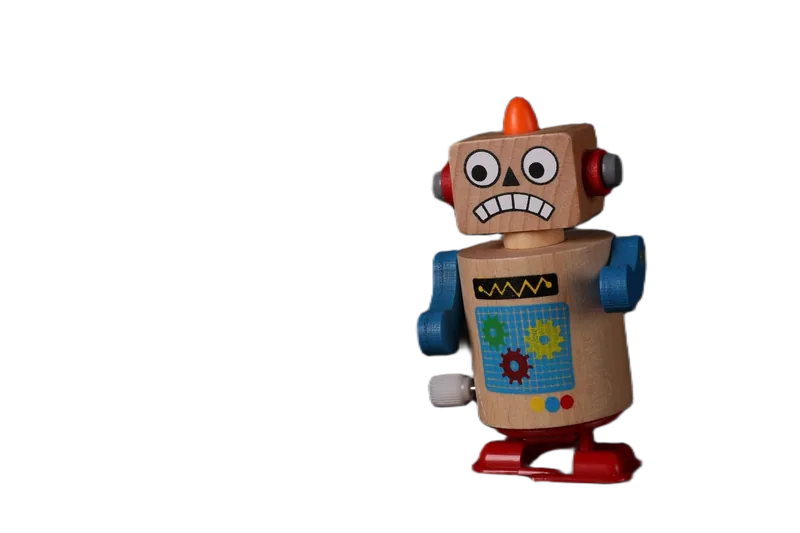
Background removal keeps the subject's colors.
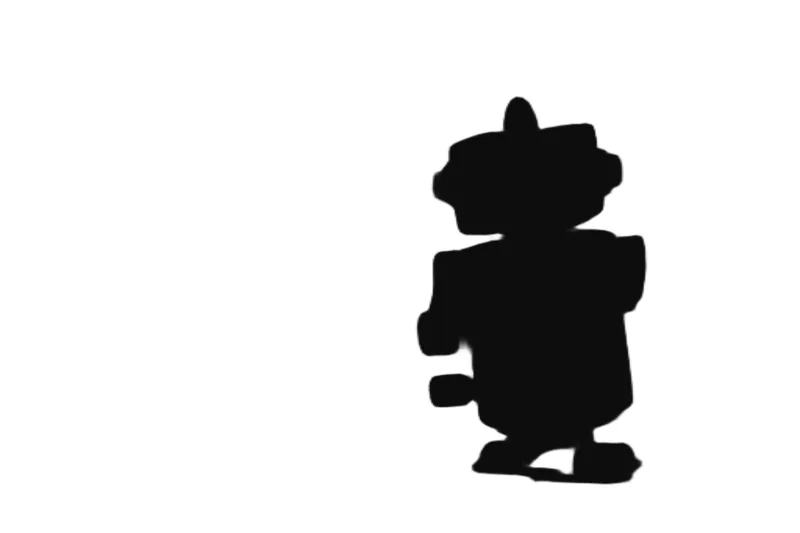
A silhouette fills the shape with one color.
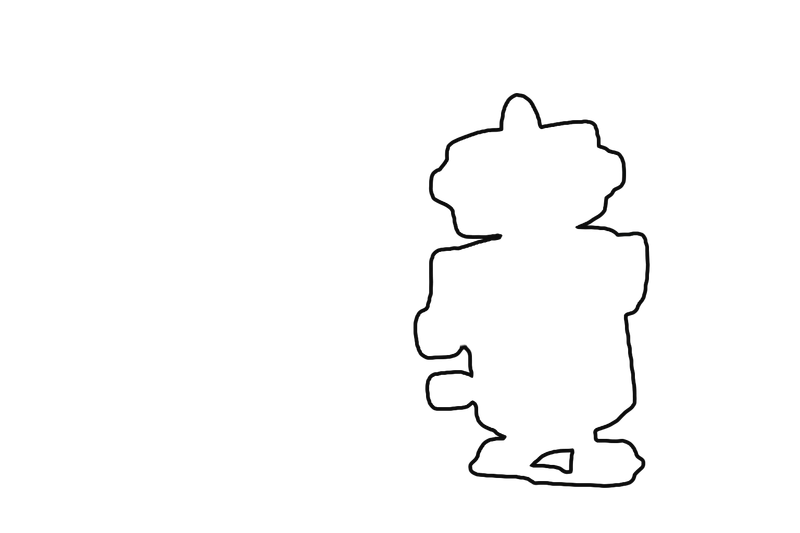
An outline traces just the edge.
A silhouette fills the subject with one color. Background removal keeps it looking like the photo. Both use the same selection, so corrections carry over.
Pick a JPG, PNG, or WebP file. The first run takes longer because the browser downloads the recognition model. Your photo stays on your device, and a PNG that's already transparent keeps its transparency.
Look for parts of the subject that went missing and bits of background that stayed. Smart Brush's Add and Remove fix those spots. Reflections, glass, and motion blur blend the subject into the background, and a small correction can't bring all of that detail back.
Choose Transparent under Background and download the PNG. Drop the saved file on a light background and a dark one to check the edges.
White gets saved as a color. Transparent areas let whatever sits behind the image show through. Choose Transparent under Background to save a transparent PNG. Some photo apps show transparent pixels as black or white, so place the PNG on another background to check.
No. You can switch between silhouette and background removal on the result screen and keep the same photo and corrections. Changing colors or styles doesn't rerun detection either. Refreshing or closing the tab does clear your work.
Zoom in and use Remove on shadows that don't touch the subject. Pixels where the subject and background blend together can't always go back to their original color. A sharper photo with more contrast often works better.
Follow the background-removal worked example
Place a transparent PNG on another design · Transparent and opaque PNG inputs · Compare easier and harder photos